All tools

Compress

Reduce the size of your PDF.

Pick a quality level and we shrink the file size.

or drop a PDF here

No file selected

Files stay private. Automatically deleted after 2 hours.

Step by step

How To Compress a PDF

Shrink a bulky PDF without leaving the browser — pick a quality level, watch the real size, and download the smaller file.

  1. 1

    Upload your PDF

    Drop the file and the screen starts measuring at once — the uploaded size on top, and underneath what the settings shown would actually produce. In our test a noisy 68.7 MB scan came out at 1.9 MB. Files are deleted after 2 hours.
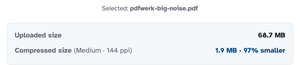
    Selected: pdfwerk-big-noise.pdf above the size inspector — Uploaded size 68.7 MB, Compressed size (Medium · 144 ppi) 1.9 MB · 97% smaller
  2. 2

    Pick quality & resolution

    Quality runs Medium, Good or Best; resolution pins pictures to 72–720 ppi — 144 is the balanced pick — and scans can go Grayscale for an even smaller file. Every chip change re-measures the estimate. The extra rows, multimedia and fonts, fold away behind More options.
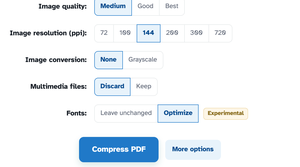
    The compress board — Image quality Medium/Good/Best, Image resolution 72–720 ppi, Image conversion None/Grayscale, Multimedia files Discard/Keep and Fonts Optimize with its Experimental badge — above the Compress PDF button and More options
  3. 3

    Compress & download

    Press Compress PDF and the ready page reports the saving right on the file — “97% smaller than the original (68.7 MB)” — with the page count kept and Download one click away.
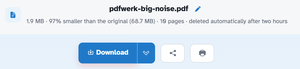
    The ready page showing pdfwerk-big-noise.pdf — 1.9 MB · 97% smaller than the original (68.7 MB) · 10 pages — above the Download button
  • See it before you run it

    The inspector runs the real compressor on every settings change — measured, never guessed.

  • Exact resolution

    Pictures land on the ppi you pick — 144 means exactly 144, not close to it.

  • Real re-encoding

    Pages are rebuilt with your settings rather than just re-saved — that is where the huge savings come from.

  • Grayscale on demand

    Switch colour off and scans shrink even further.

  • Forms stay fillable

    Interactive form fields survive the squeeze.

  • Private by default

    No account, no watermark — and every file is automatically deleted after 2 hours.

Compress — frequently asked questions

Will compression hurt the quality?

Pick the level: Extreme shrinks most, Recommended balances both, Low preserves fine detail. The size inspector shows the exact result before you commit.

How much smaller will my file get?

It depends on what's inside: scans and photos shrink the most, text-only PDFs the least. The size inspector shows the exact before/after on your file before you commit.

It's still over the limit after compressing — now what?

Go one level stronger, or split the PDF by size: the Split by size tool packs pages under a KB ceiling so each part fits the upload limit you're fighting.

Is Compress free?

Yes — Compress is free right here in your browser, with no watermark and no sign-up. Every tool on the site works the same way.

Do I need an account to use Compress?

No. Accounts are optional — they keep your credits, API keys and settings together. The tools work signed-out.

What happens to my file?

Every upload is stored under an unguessable id and deleted automatically after 2 hours. Nothing is listed, shared or emailed anywhere.

Can I run Compress from the API?

Yes — every tool has a REST endpoint. An API call for this tool costs 10 credits per file; browser use stays free. See the Plans & pricing page for plans and the API page for the endpoint list.

More answers on the Help page. Building with the API? Plans & pricing.