
Split by bookmarks
Extract chapters to separate documents based on the PDF bookmarks.
Uses the document's bookmarks: each chapter becomes a separate file.
or drop a PDF here
No file selected
Files stay private. Automatically deleted after 2 hours.
Step by step
How To Split a PDF by Bookmarks
Turn the document's own table of contents into the cut list — every bookmark at the level you pick starts a new file, named after its title.
-
1
Upload your PDF
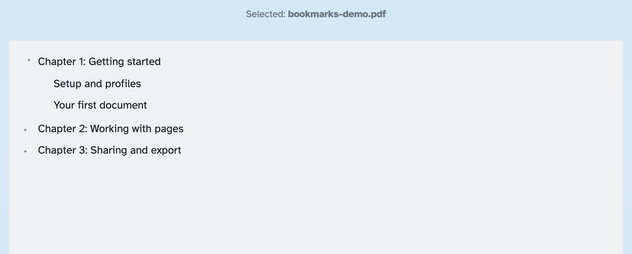
Drop in a document with bookmarks and its outline fills a grey contents box — foldable to the children. No bookmarks yet? The Create Bookmarks tool opens your file ready to write them. Files are deleted after 2 hours.
-
2
Pick the level and filter
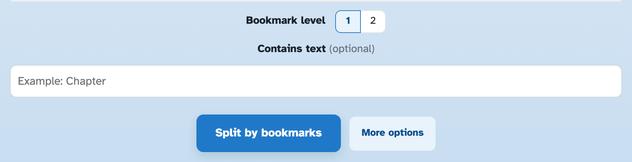
Level buttons reach as deep as the document nests: 1 cuts at chapters, 2 at their sub-sections. “Contains text” narrows the cuts to bookmarks whose title holds a word — “Chapter”, “Part”, an address.
-
3
Split and download
Press Split by bookmarks — each part runs from its bookmark's page to the page before the next one, so nothing is lost. If a chapter's last paragraphs spill onto the next bookmark's page, More options adds one extra page at the end. Parts come back in one ZIP named [FILENUMBER]_[BOOKMARK_NAME].
![More options open on two panels: Missing paragraphs at the end with its Include extra page at the end checkbox, and Customize result names with [FILENUMBER]_[BOOKMARK_NAME]](/static/img/split-bk-guide/options.png)
-
The document writes the cut list
Every bookmark at your chosen level starts a section — the contents box is the plan.
-
Any nesting depth
Level buttons reach as deep as the document nests — chapters or the sub-sections inside them.
-
Contains text
Split only at bookmarks whose title holds a word, like “Chapter” — the rest stay put.
-
Names from the bookmarks
[BOOKMARK_NAME] puts each bookmark's title on its file: 1_Getting started.pdf, 2_…
-
One ZIP back
Every part downloads together in a single ZIP; a lone bookmark returns one PDF.
-
Private by default
No account, no watermark — and every file is automatically deleted after 2 hours.
Selected:
No bookmarks found. Write some with Create Bookmarks — this file opens there already loaded — then split again.
Some invalid bookmarks were ignored