All tools

JPG to PDF

Convert Images to PDF

Every image becomes a page — merged into one PDF or one file each.

or drop images here

No files selected

Files stay private. Automatically deleted after 2 hours.

Step by step

How To Convert JPG to PDF

Turn a stack of pictures into one tidy PDF — page size, orientation and margins under your control.

  1. 1

    Upload your images

    Choose images or drop them in — JPG, PNG and friends. Each one lands on the sheet as a page, with a zoom slider to size the previews, and Add More Files tops the stack up anytime. Files are deleted after 2 hours.

    Two image sheets on the stage — a red one labelled j2p-1 and a blue one labelled j2p-2
  2. 2

    Set the page & fit

    Page size runs A4 by default — or Letter, A3 and friends, or Fit to image so the sheet hugs the picture. Orientation Auto follows each image, and margins come in None, small or large. Merge into one document stays on; switch it off and every image downloads as a PDF of its own.
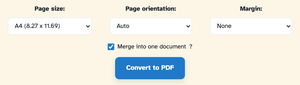
    The Page size A4, Page orientation Auto and Margin None dropdowns above the ticked Merge into one document box and the Convert to PDF button
  3. 3

    Convert & download

    Press Convert to PDF. In our test the two pictures came back as j2p-1.pdf — a two-page A4 document, one image per page, download one click away.
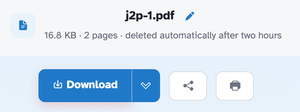
    The ready page showing j2p-1.pdf — 16.8 KB · 2 pages · deleted automatically after two hours — above the Download button
  • Every image a page

    Pictures land on their own sheet of the one document.

  • Page size your way

    A4, Letter, A1… or Fit to image so the sheet hugs the picture.

  • Orientation Auto

    Portrait, landscape — or automatic per picture.

  • Add more anytime

    Add More Files stacks further pictures into the same PDF.

  • Merge — or don't

    Switch Merge off and every image downloads as its own PDF.

  • Private by default

    No account, no watermark — and every file is automatically deleted after 2 hours.

JPG to PDF — frequently asked questions

Can I combine many images into one PDF?

Yes — drop them in, choose page size, orientation and margins, and every image becomes a page of one document. Switch merging off if you'd rather get one PDF per image.

Will converting shrink my photos?

The images are embedded page by page at their own resolution — the PDF keeps what your camera captured. If the result is heavy, compress it afterwards; the size inspector shows the savings first.

Is JPG to PDF free?

Yes — JPG to PDF is free right here in your browser, with no watermark and no sign-up. Every tool on the site works the same way.

Do I need an account to use JPG to PDF?

No. Accounts are optional — they keep your credits, API keys and settings together. The tools work signed-out.

What happens to my file?

Every upload is stored under an unguessable id and deleted automatically after 2 hours. Nothing is listed, shared or emailed anywhere.

Can I run JPG to PDF from the API?

Yes — every tool has a REST endpoint. An API call for this tool costs 10 credits per file; browser use stays free. See the Plans & pricing page for plans and the API page for the endpoint list.

More answers on the Help page. Building with the API? Plans & pricing.