
Resize
Add margins and padding, or put every page on a new paper size.
or drop a PDF here
No file selected
Files stay private. Automatically deleted after 2 hours.
Step by step
How To Resize a PDF
Add breathing room around every page — or put the whole document on new paper — and see each page's new size before you run.
-
1
Upload and pick the mode
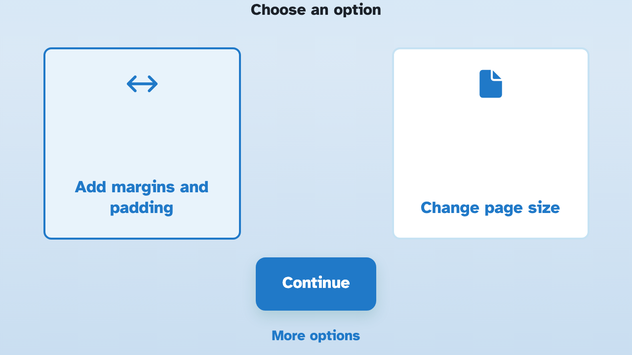
Drop in a document and choose: Add margins and padding widens the sheet around its content, Change page size puts every page on new paper, and More options reveals Reduce the file size. Files are deleted after 2 hours.
-
2
Set the margins or the paper
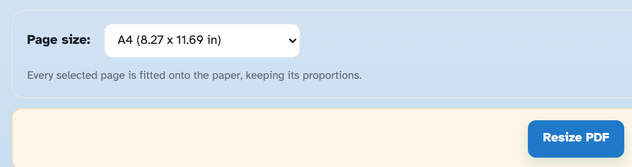
For margins, type Top / Left / Right / Bottom in inches or cm — half an inch on every side turns 8.27 × 11.69 in into 9.27 × 12.69 in. For a new paper size, pick a preset from A1 down to Executive or type a custom width and height — every page is fitted keeping its proportions.

-
3
Check the sizes and run
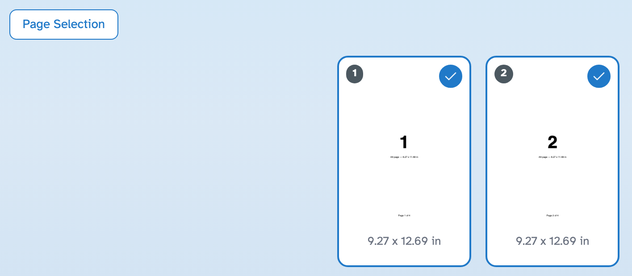
The size under every page updates as you type, so the outcome is visible before you commit. Pick pages with Page Selection (Select All / Odd / Even / Deselect All) if only some should change, then press Resize PDF.
-
Margins that breathe
Half an inch on each side grows A4 from 8.27 × 11.69 to 9.27 × 12.69 in.
-
Any paper size
A1 to Executive presets or a custom width and height — fitted, proportions kept.
-
inch or cm
The unit switch converts the margins — type in whichever you think in.
-
See it before you run
The size under every page updates as you type — the new dimensions are the plan.
-
All, odd, even — or picked pages
Page Selection limits the change to the pages you chose; the rest stay as they are.
-
Private by default
No account, no watermark — and every file is automatically deleted after 2 hours.
Selected:
Choose an option
Choose an option
Margins
Every selected page is fitted onto the paper, keeping its proportions.
Filenames (0):