
Edit Metadata
Change PDF Author, Title, Keywords, Subject and other metadata fields
or drop a PDF here
No file selected
Files stay private. Automatically deleted after 2 hours.
Step by step
How To Edit PDF Metadata
Change a document's title, author, dates, keywords and more — or wipe every property clean. The boxes open prefilled with what the file already carries.
-
1
Upload your PDF
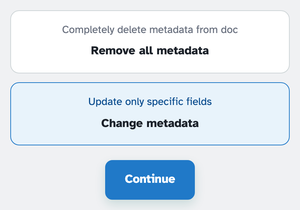
Drop in a document and pick the job: Change metadata edits the fields — it's the one already selected — while Remove all metadata strips the file back to bare. Files are deleted after 2 hours.
-
2
Edit the fields
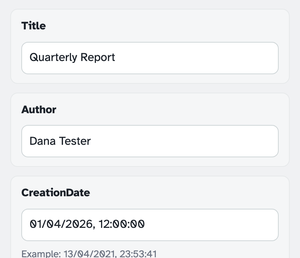
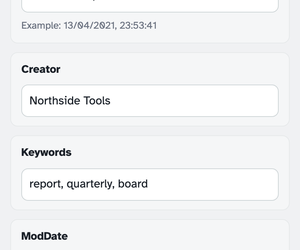
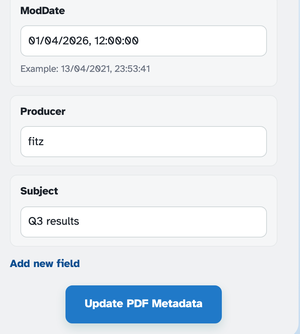
Continue opens eight boxes, prefilled from the file's own properties: Title, Author, CreationDate, Creator, Keywords, ModDate, Producer and Subject. Type over anything — or empty a box to clear that property on the run. Dates take the friendly 13/04/2021, 23:53:41 shape.
-
3
Add your own fields, then update
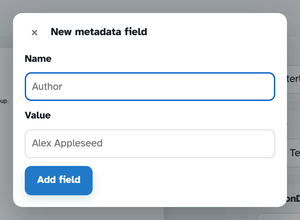
Add new field opens a small dialog — name it, give it a value, and the row joins the list, riding into the PDF as its own property. Press Update PDF Metadata and the edited file comes back ready to download. (Remove all metadata skips the boxes and finishes straight from Continue.)
-
Eight fields, prefilled
Title, Author, Creator, Keywords, Subject, Producer and both dates open with the file's own values.
-
Or wipe them all
Remove all metadata leaves a document with no properties at all — nothing to trace.
-
Custom fields
Add your own properties — Department, Invoice, anything — from the New metadata field dialog.
-
Friendly dates
Type dates as 13/04/2021, 23:53:41 — and empty any box to clear that property.
-
Clean before sharing
Stripping metadata removes author names and software traces before a file leaves your desk.
-
Private by default
No account, no watermark — and every file is automatically deleted after 2 hours.
Selected: