
N-up
Print multiple pages per sheet per paper.
or drop a PDF here
No file selected
Files stay private. Automatically deleted after 2 hours.
Step by step
How To N-up a PDF
Lay several pages of a document onto one sheet — two, four, eight, up to 32 — ready for printing or handouts.
-
1
Upload your PDF
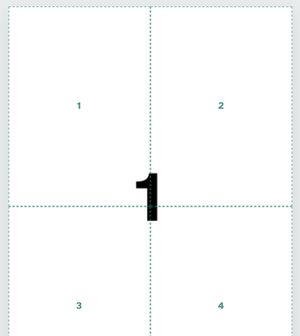
Drop in a document and the first sheet appears with the current plan drawn on it — dashed zones numbered in reading order. Files are deleted after 2 hours.
-
2
Choose the style
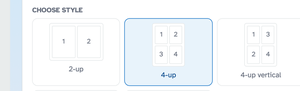
Tap a card — 2-up, 4-up, 4-up vertical, 8-up or 8-up vertical — or set the numbers directly: Pages per sheet runs from 2 to 32, and Page order flips the numbering between rows (horizontal, left to right) and columns (vertical, top to bottom). The plan on the page redraws instantly as you go.
-
3
Set the paper and run
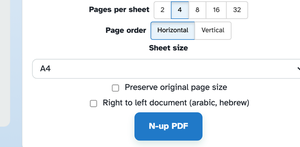
Sheet size is the paper the pages are imposed onto — A3 down to Tabloid, A4 by default. Preserve original page size keeps each page's own dimensions, and Right to left flips the columns for arabic or hebrew reading. Press N-up PDF and the document comes back with its pages packed, ready to print.
-
Up to 32 on a sheet
From 2-up to 32-up; the plan redraws to match the number you pick.
-
Five ready styles
2-up, 4-up, 4-up vertical, 8-up and 8-up vertical cards, each showing its own order.
-
Rows or columns
Horizontal numbers left to right; Vertical works down each column instead.
-
Right-to-left ready
One tick mirrors the column order for arabic or hebrew documents.
-
Your paper or theirs
Impose onto A3–Tabloid, or keep every page at its own size with Preserve.
-
Private by default
No account, no watermark — and every file is automatically deleted after 2 hours.
Selected: